Tutorial - Strategy
This tutorial demonstrates how to create a new strategy with the editor in SPARQUE Desk that finds the variation products of a given base product, using the dataset from the Data Virtualization Tutorial. The strategy can then be used in an API.
Requirements:
- A SPARQUE workspace
- Login details for your workspace
- The loaded
productsdataset from the Data Virtualization Tutorial
Log In
To begin, log in to SPARQUE Desk:
Go to desk.sparque.ai and sign in.
Select your workspace from the list of available workspaces.
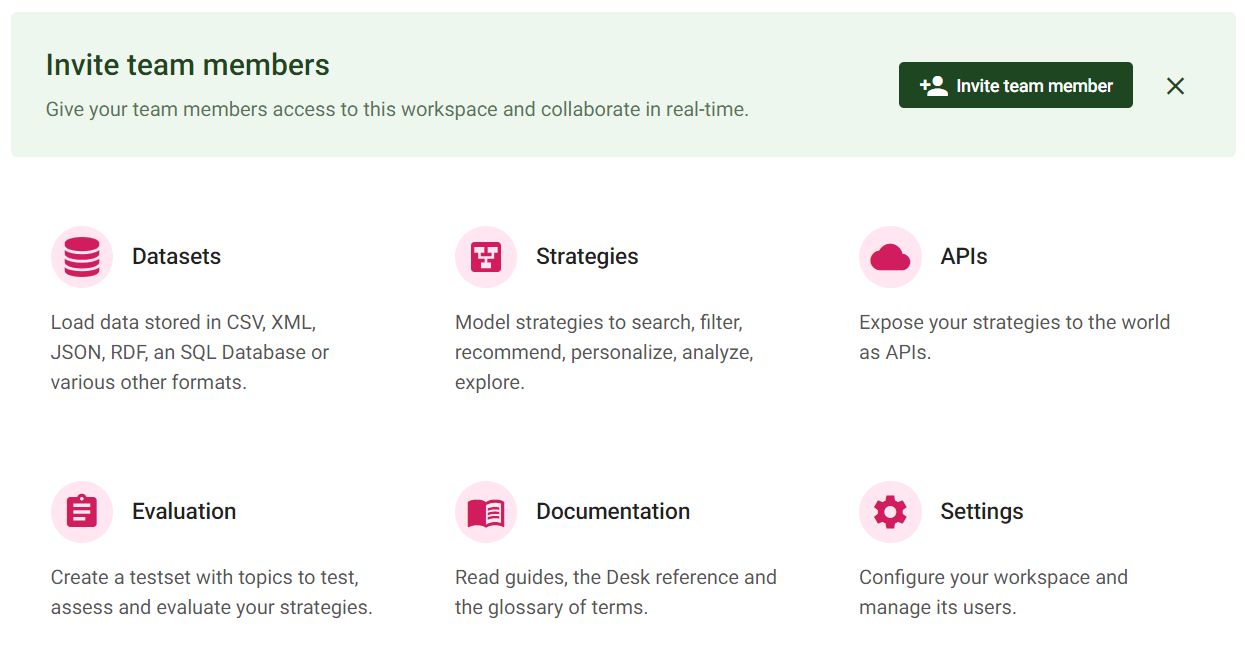
After logging in and selecting the workspace, the following menu appears:
Create a New Strategy
To create a new strategy:
Click Strategies | + Create strategy. This opens the strategy editor with an empty strategy.
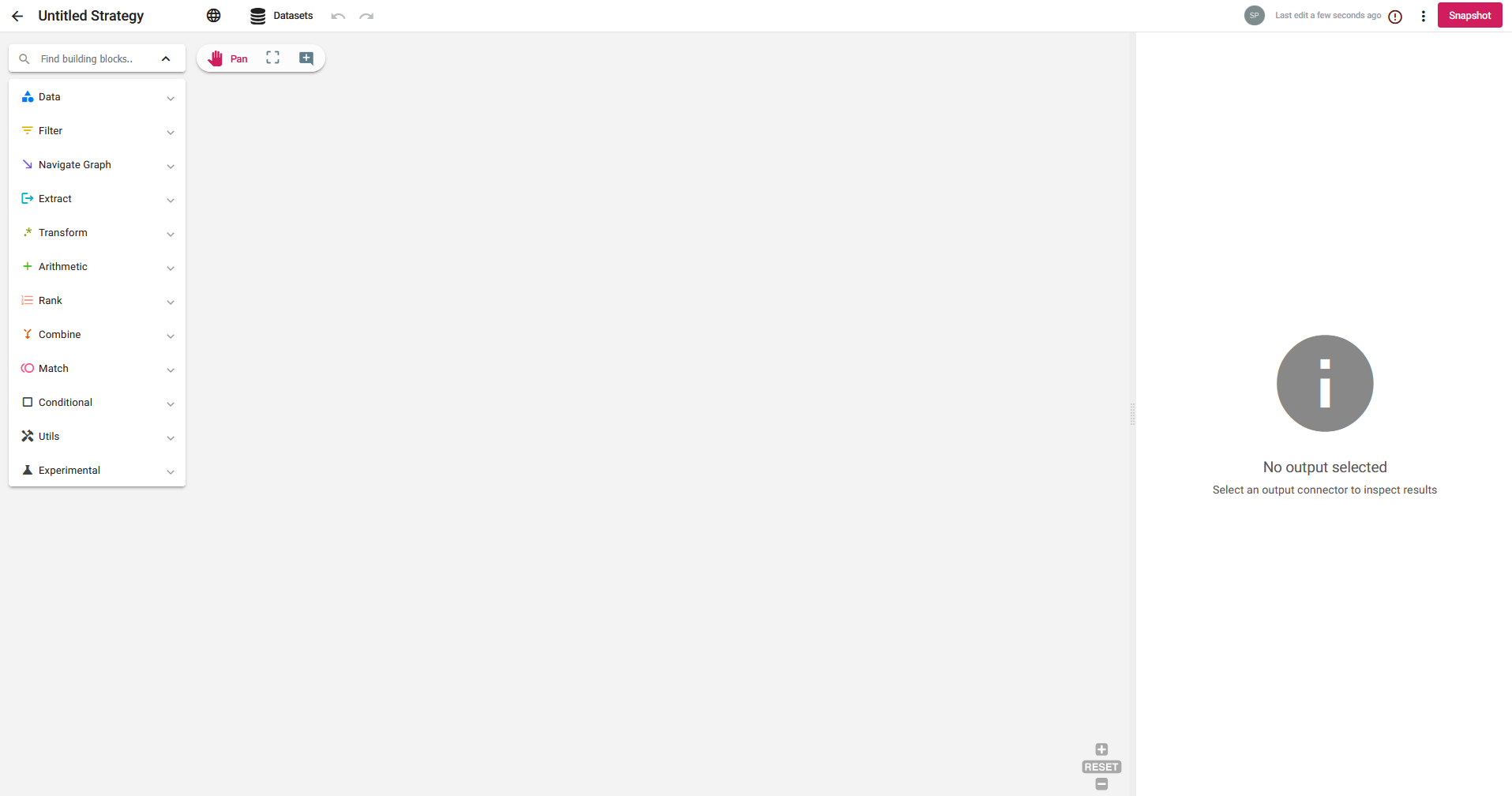
By default, all new strategies are named
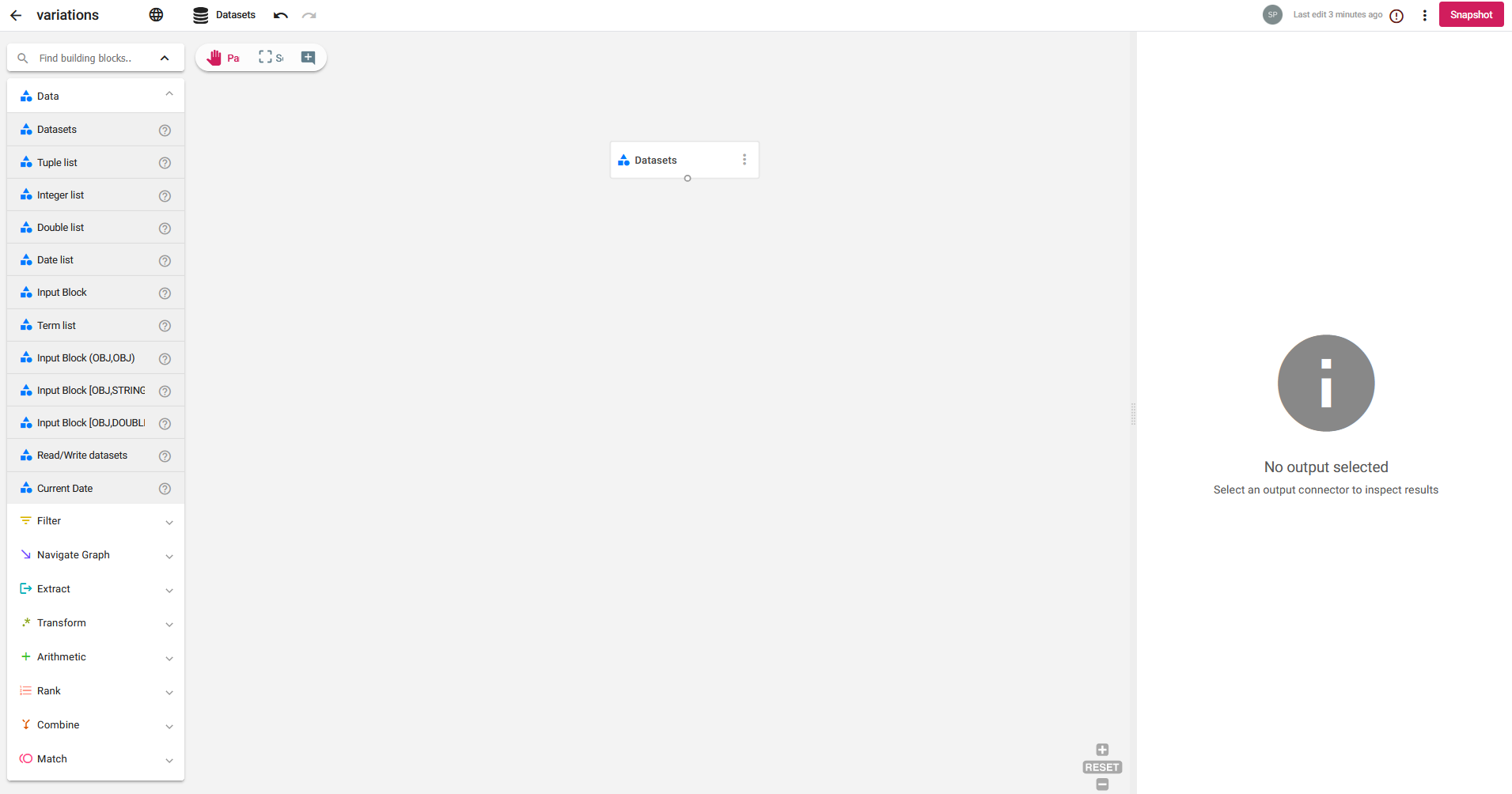
Untitled Strategy. To rename the strategy, click the current strategy name and entervariations. The new name is applied automatically.To find the variation products of a base product, the products must be available in the strategy. Add a new building block by dragging and dropping it from the block library on the left onto the blank canvas in the middle. Add the Datasets block, which is grouped under Data.
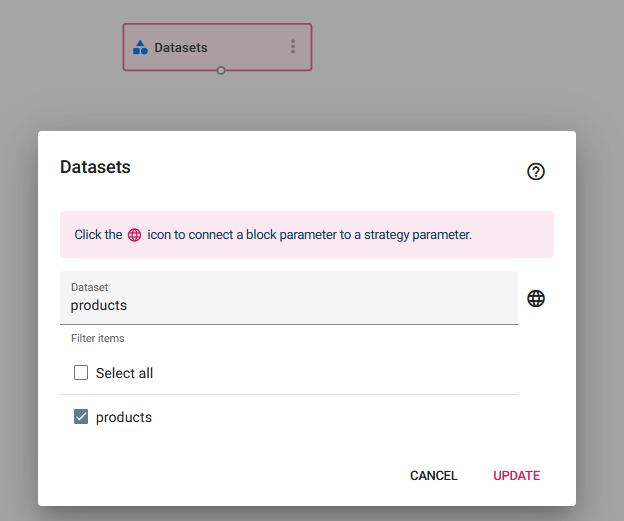
Click on the Datasets block that was just added. This opens the block's configuration. Every block type has its own configuration options. The Datasets block configuration provides a list of datasets, from which one or more can be selected. Select the
productsdataset and click UPDATE. If the list of datasets is too long, use the Datasets filter to search for the desired dataset.Note: The documentation for the configuration options can be opened by clicking the question mark icon in the top right of the configuration window.
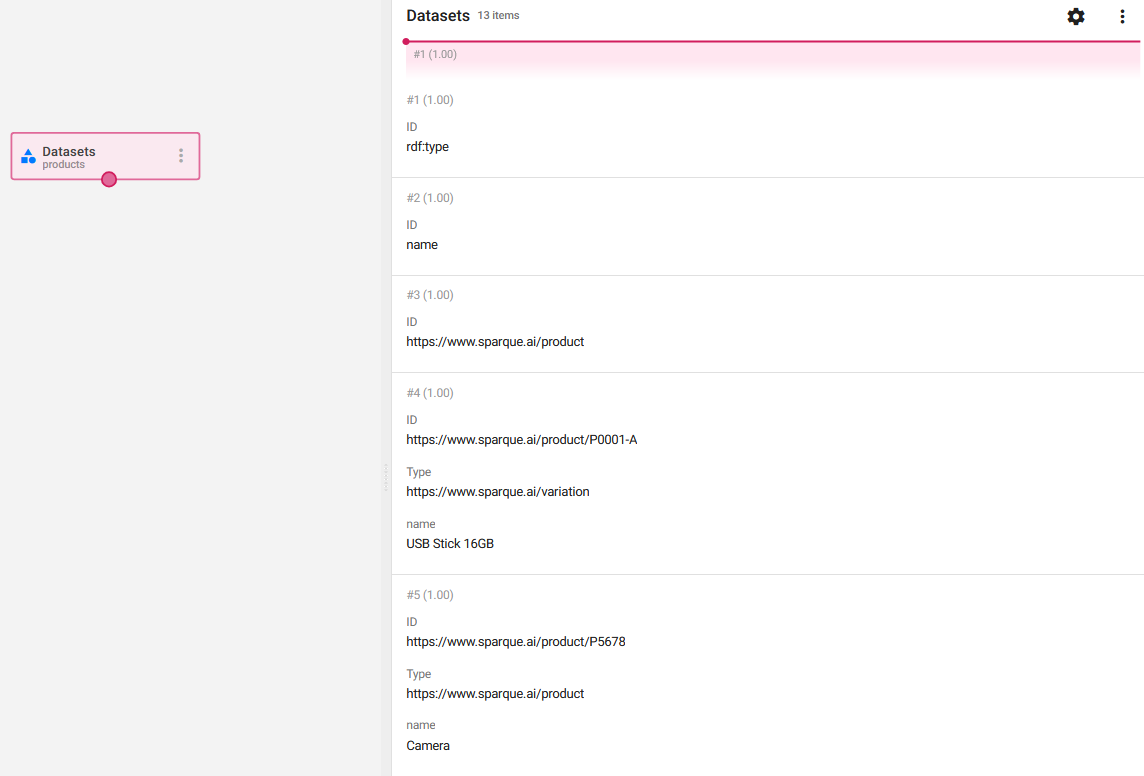
Inspect the Datasets block's output by clicking the output connector (the circle at the bottom of the block). The output pane on the right displays the data provided by the block.
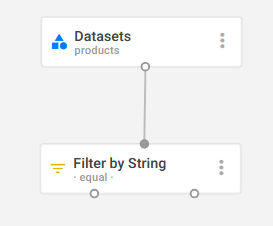
To retrieve the base product for which the variation products are needed, add a Filter by String block. Notice the input connector (the circle at the top of the block). This block performs operations on the output provided by another block. The number of input and output connectors varies per block type. Click the Datasets output connector and drag it to the input connector of Filter by String. Both blocks are now connected.
Note: Each output connector provides data of a certain type, for example
ObjorString, and an input connector only accepts data of a certain type. When connecting two blocks, the types of the input and output connector must match. The data types of a block's connectors are visible when hovering over the block.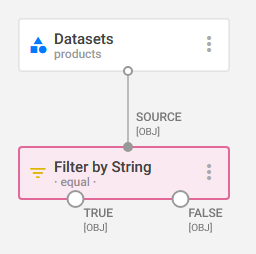
Configure the Filter by String block. Set the Property to
sku. To dynamically provide a SKU to search for variation products, an input parameter is needed for Literal. Click the globe icon next to the Literal field and select New strategy parameter. Set the Parameter Name tobaseproductand the Type toSTRING. Then click ADD. The Literal is now provided by a strategy parameter. Now apply the configuration by clicking UPDATE.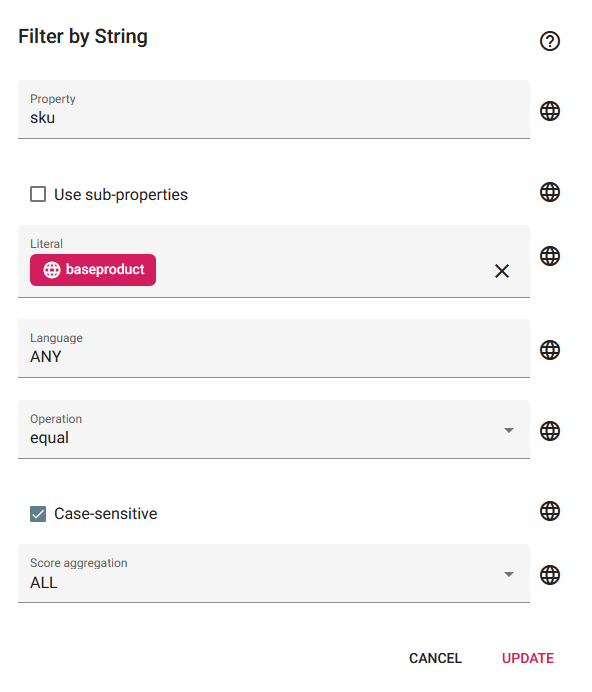
After adding a strategy parameter, the strategy template changes. This is visible next to the strategy name, which now shows the parameter name and its type.

Inspect any of the output connectors of Filter by String. No result is shown. If Literal was set to a fixed value, a result would be available. However, because of the strategy parameter, the block does not know which SKU to look for. To check whether the Filter by String block was configured correctly, define a Testset. A Testset provides the strategy with a value for the strategy parameter.
Click on the True output connector of Filter by String. The Testset can be selected In the output pane on the right. Click Choose a testset and then + Create a new testset at the bottom. Set
baseproduct-testas the name, select/baseproduct/STRING -> OBJas the API template, and click CREATE.The Testset exists, but has no tests yet. Click the + icon next to Pick a test. Enter
P0001as the value for thebaseproductparameter and click Add test. Do the same forP1234. Click DONE to finish adding tests.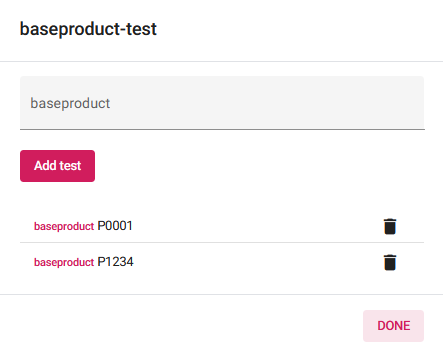
Apply the test by clicking Pick a test and selecting baseproduct P0001. The data provided by the True output connector of the Filter by String block is now visible. It shows the base product with SKU P0001. When selecting the baseproduct P1234 test, the product with SKU P1234 is shown.
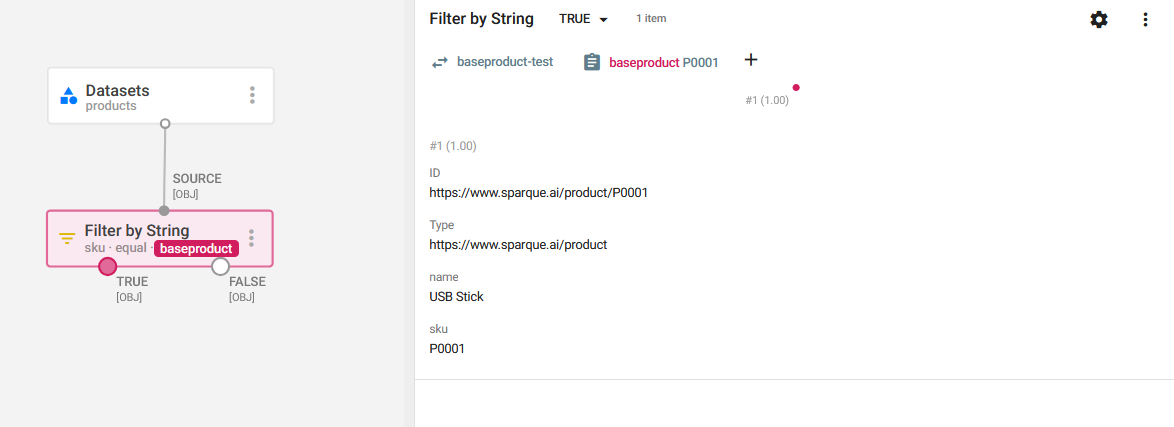
Now that the base product has been retrieved successfully, find the related variation products. As the base product and variation product have a relation, a Traverse relation block is needed. Add one to the strategy. It is grouped under Navigate Graph in the block library. Connect the True output connector of Filter by String to the input connector of Traverse relation.
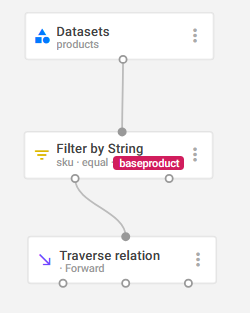
Configure the Traverse relation block. Set Predicate to
variation, this is the relation defined in the data mapping of the previous tutorial. Because the relation goes from variation product to base product, set Direction toBackward. Apply the configuration by clicking UPDATE.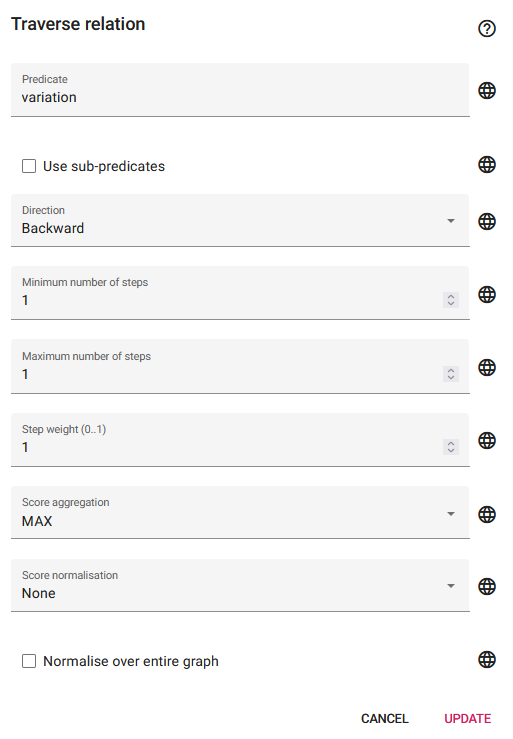
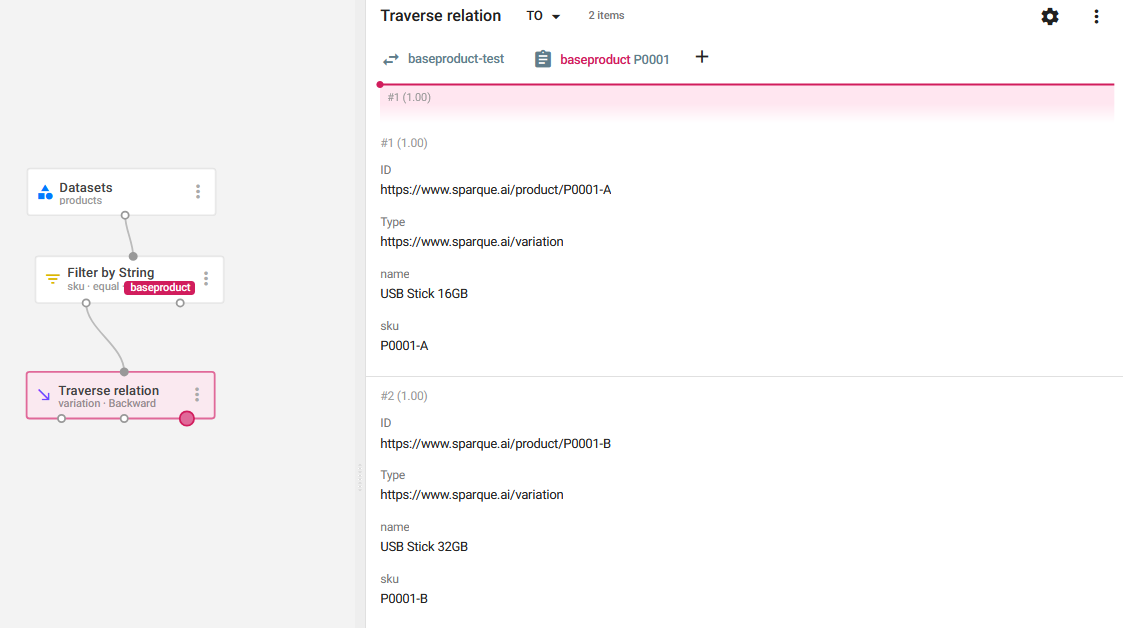
Click the To output connector of Traverse relation and select the baseproduct P0001 test of the baseproduct-test Testset. The output contains both variation products of the base product with SKU P0001.
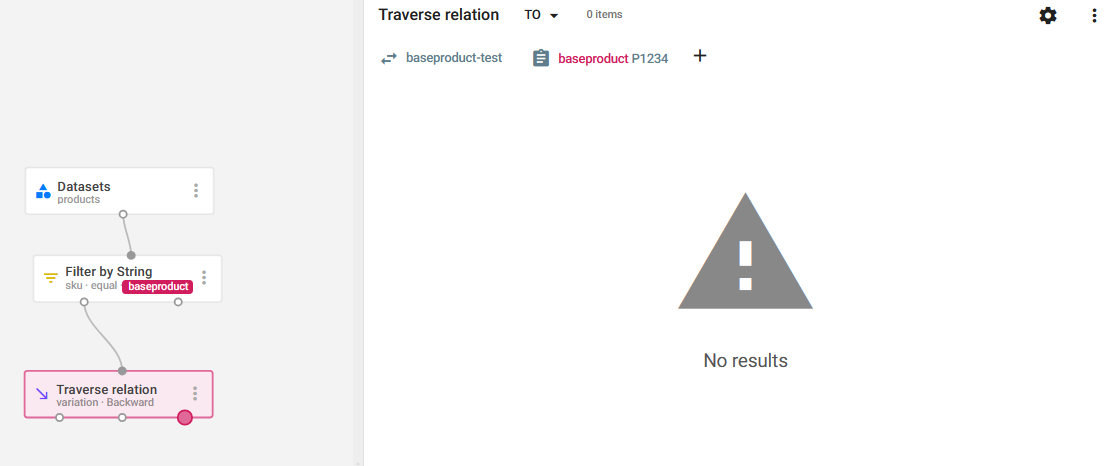
Change the test to baseproduct P1234. No result is shown, because the product with SKU P1234 has no variation products.
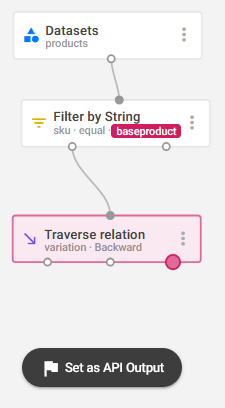
To use the data provided by the strategy in an API, mark the output connector as the API output. Click the To output connector of Traverse relation and then click Set as API Output in the bottom center.
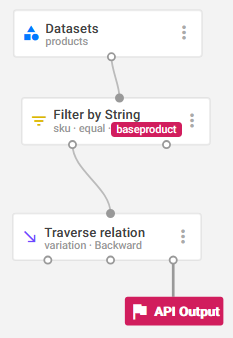
The finished strategy should look like this:
Create a Strategy Snapshot
The strategy has been created, but cannot be used by an API yet. An API can only use strategy snapshots.
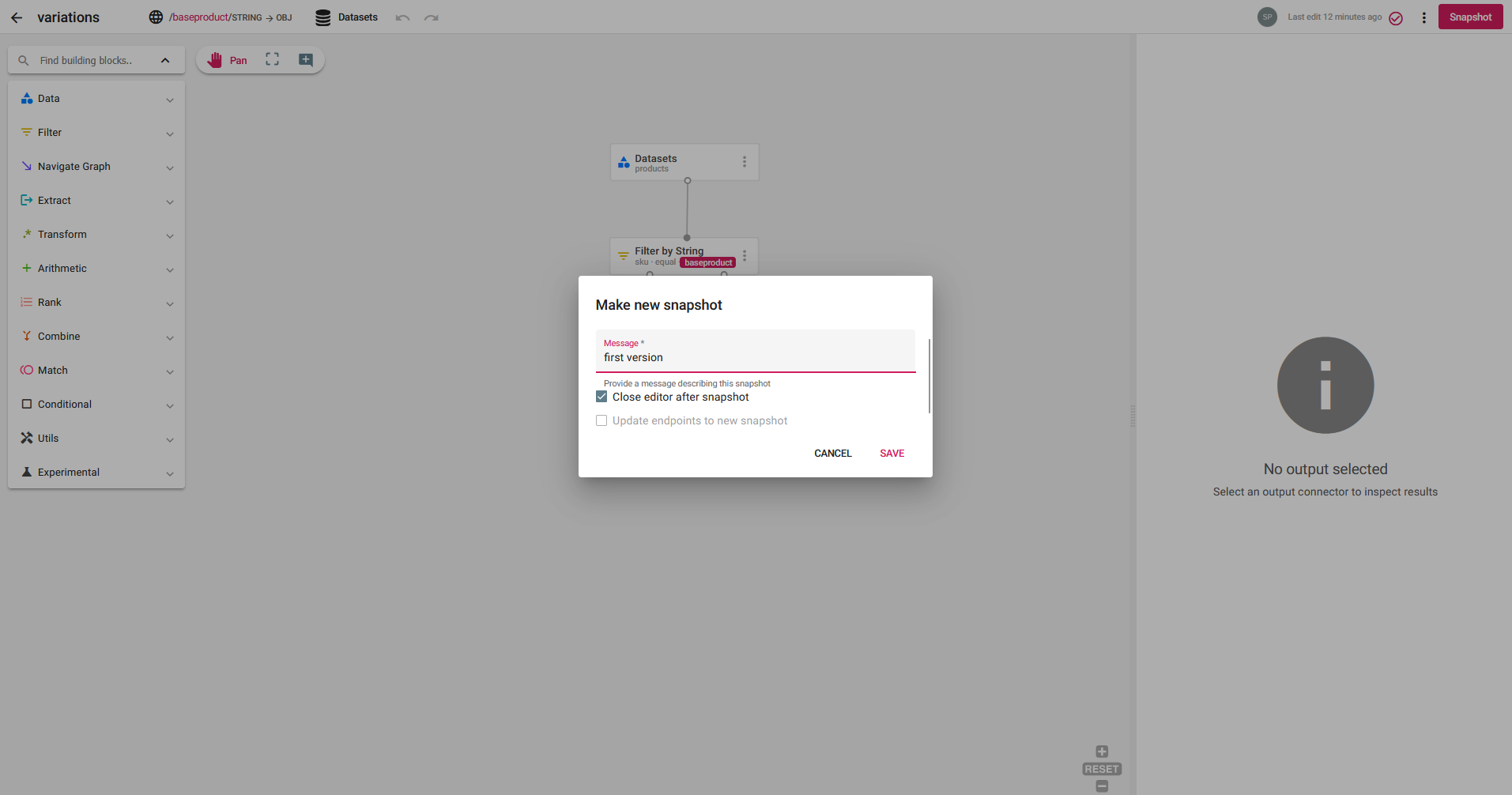
To create a strategy snapshot click Snapshot in the top right of the strategy editor. Enter the message first version for the snapshot and click SAVE. The snapshot can be used by an API.