
Tutorial - API
This tutorial demonstrates how to create a new API in SPARQUE Desk that makes the strategy from the Strategy Tutorial accessible to external applications.
Requirements:
- A SPARQUE workspace
- Login-details for your workspace
- The loaded
productsdataset from the Data Virtualization Tutorial - The strategy
variationsfrom the Strategy Tutorial
Log in
To begin, log in to SPARQUE Desk:
Go to desk.sparque.ai and sign in.
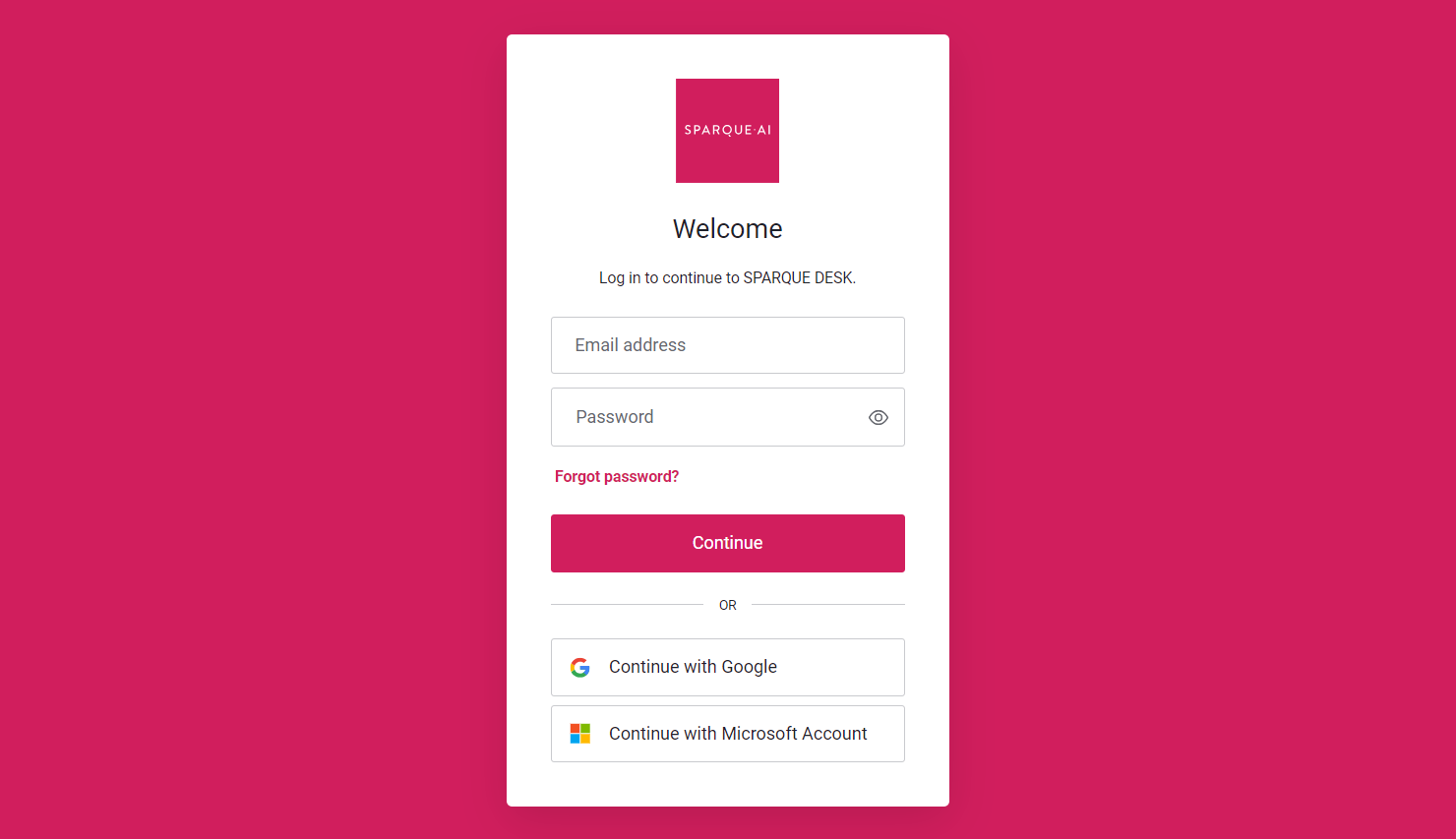
Select your workspace from the list of available workspaces.
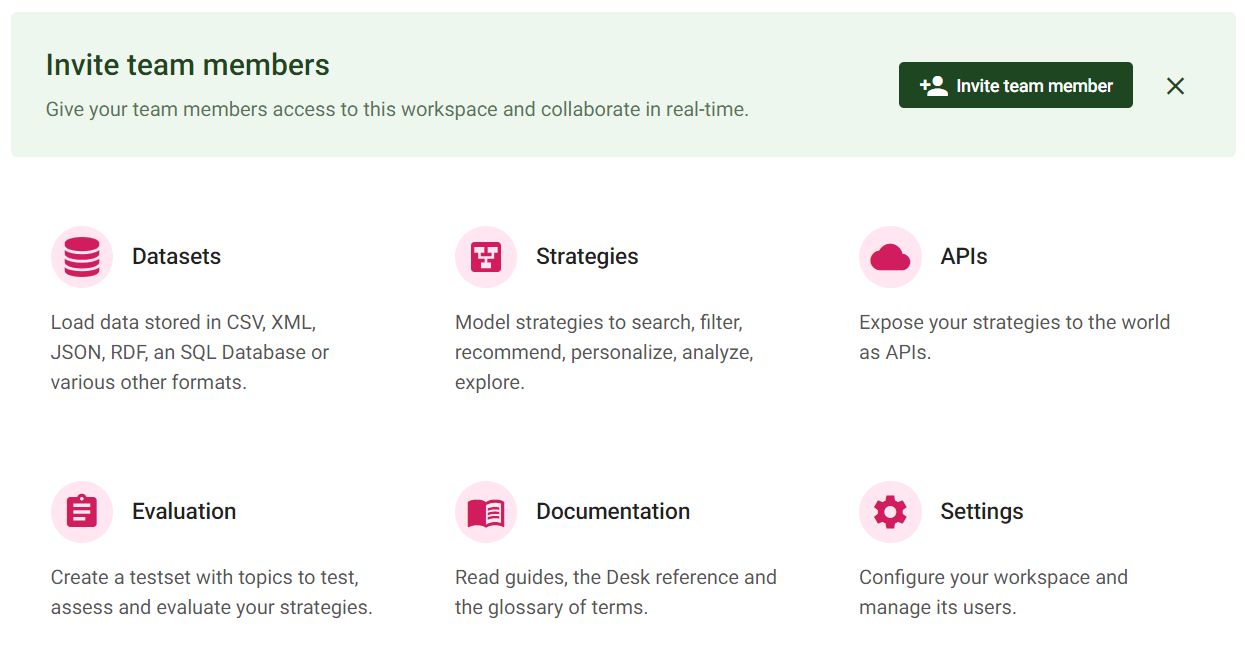
After logging in and selecting the workspace, the following menu appears:
Create a new API
To create a new API:
Click APIs | + Create API.
Enter the name
searchand click CREATE.An empty API is now created.
Click + Add endpoint to create a new API endpoint. Each API can have multiple endpoints. In the creation dialog, enter
variationas the endpoint name and click NEXT. Select/baseproduct/STRING -> OBJas the template and click NEXT again. Review the new endpoint and click CREATE ENDPOINT. The API now has one endpoint. The path variation/p/baseproduct/{STRING} breaks down to:- variation: the endpoint's name
- p: indicates the next path segment is a parameter
- baseproduct: the parameter name, as defined in the
variationsstrategy - {STRING}: a placeholder for the value with which the endpoint is called
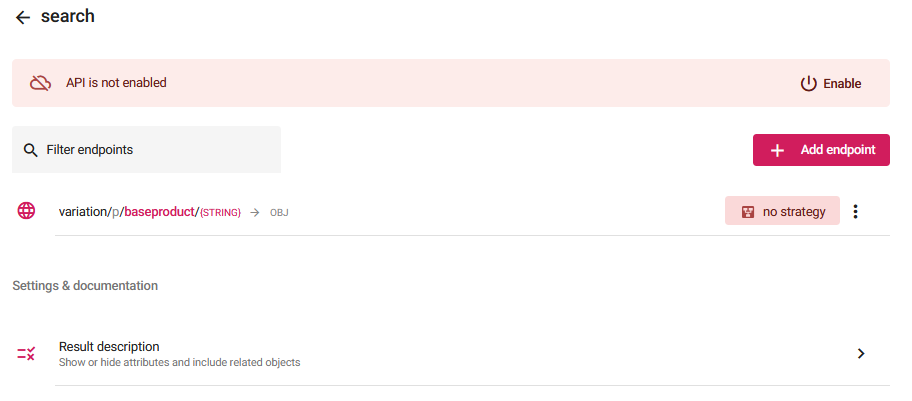
The endpoint exists but has no functionality yet. To provide functionality, a strategy needs to be assigned. To select a strategy, click the red no strategy button to the right of the endpoint. Click the
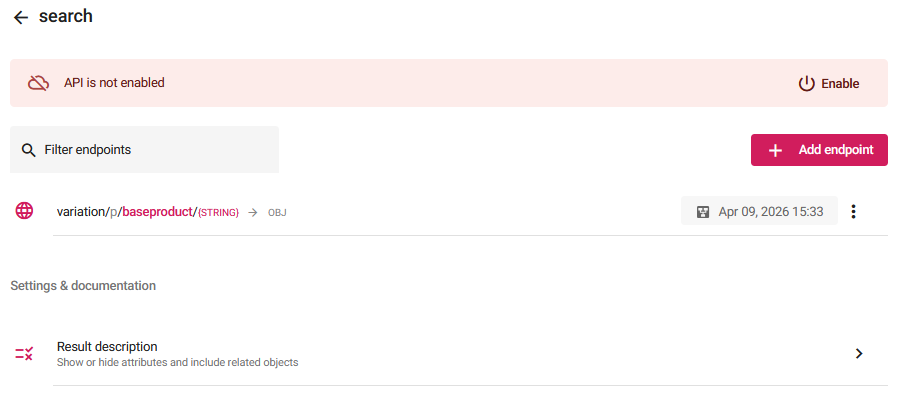
variationsstrategy and select the snapshotfirst version. Then click SELECT.The button is no longer red and displays the date and time the strategy snapshot was created.
Enable the API
To access the API, it needs to be enabled.
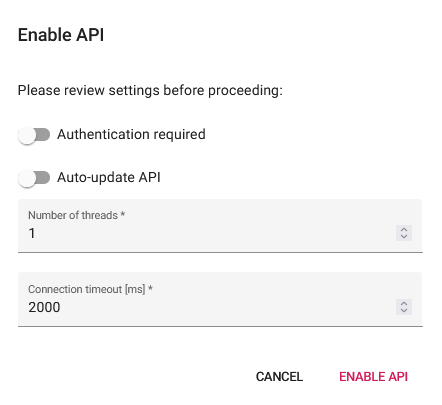
At the top is a banner saying "API is not enabled". Click Enable on the right side of the banner. Before the API is enabled a few settings can be changed. For this tutorial, only disable Authentication required and leave the rest as is. Then click ENABLE API.
Wait a moment for the API to finish initializing.
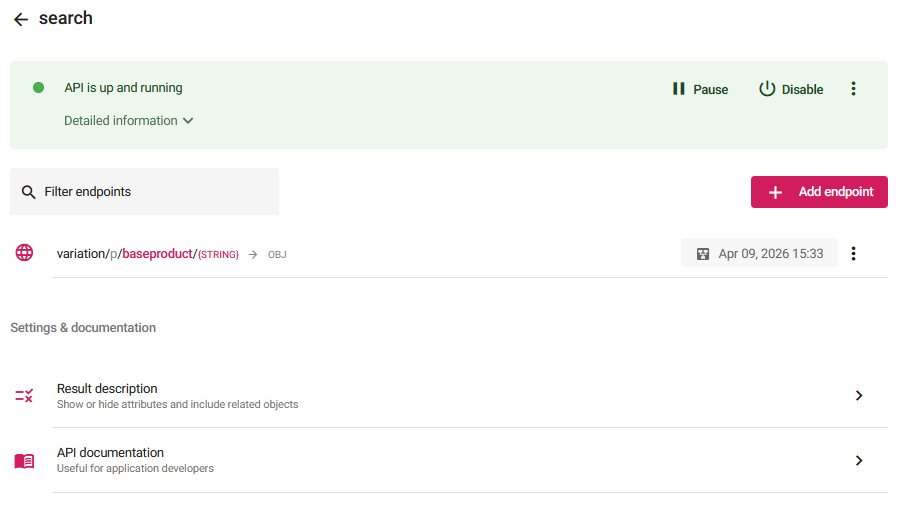
Click on the endpoint to open its result page. Because the endpoint has a parameter and no value has been provided, the result is empty.
On the left, set the value of the baseproduct parameter to
P0001. The result updates automatically and shows the two variation products of the base product with SKU P0001.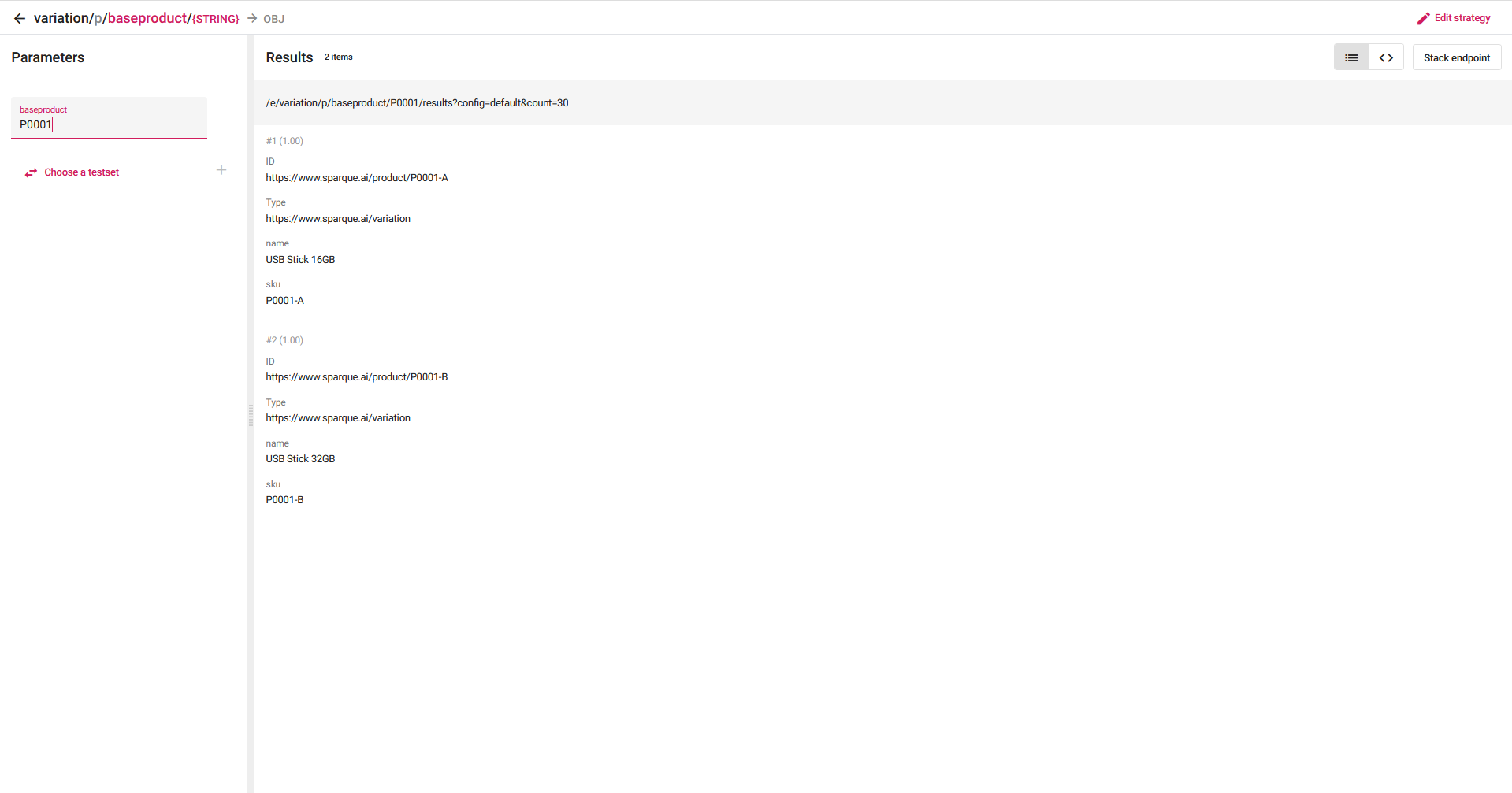
Set the value to
P1234. The result is empty again. The output is identical to the Testset used in thevariationsstrategy.To view the result as raw JSON, click the icon with two angle brackets < > in the top right. This is the response format SPARQUE uses to reply to requests.
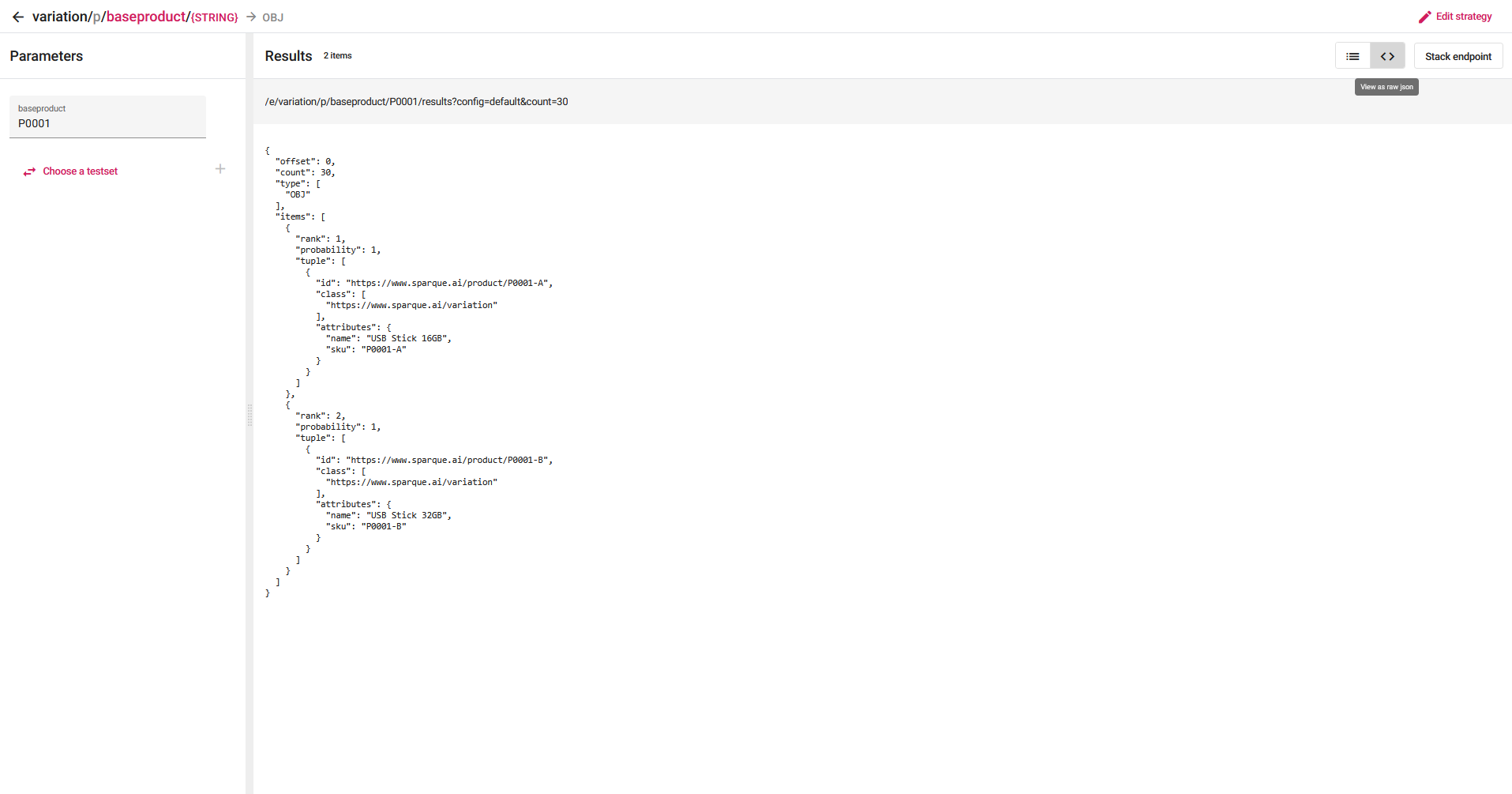
The API endpoint can also be accessed by external applications. Set the baseproduct parameter back to
P0001to get a result. When hovering over the endpoint path (below the Results heading), a copy icon appears. Click it to save the entire request URL to your clipboard.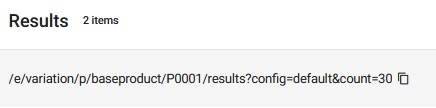
For this tutorial, the web browser will be the external application to access the API endpoint. Open a new browser tab, paste the URL into the browser's address bar and press the enter key. The browser shows the same JSON response as previously in SPARQUE Desk.
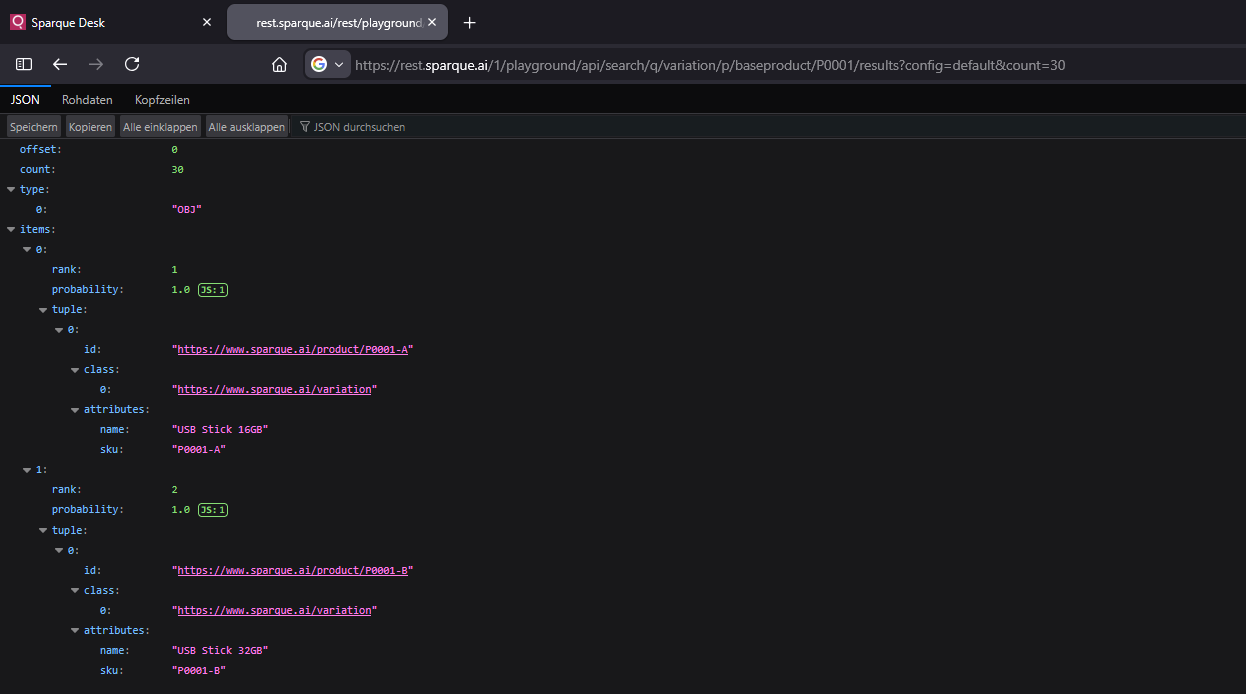
Note: With Authentication required enabled, it would not be possible to simply copy the URL into the browser, because this setting requires the request to contain a token to verify and permit access to the API.
Congratulations! All tutorials have been completed. The basics of virtualizing data with datasets, configuring a strategy to apply logic, and making the result of a strategy available to external applications are now covered.